How to Download TikTok Videos on PC Without Watermark
You found a TikTok on your computer — maybe while browsing, maybe someone sent you a link — and you want to save it without that bouncing watermark. On PC it’s straightforward: no apps, no software installs, just your browser.
Why TikTok Adds a Watermark
TikTok stamps downloaded videos with its logo and the creator’s username to credit creators when videos spread. Understandable — but annoying when it’s your own video or the watermark covers text. A downloader fetches the original file before the watermark is applied.
Ethics note: personal use and saving your own content is fine. Don’t re-upload others’ videos as your own.
What You’ll Need
- Windows or Mac (any modern version)
- Any browser: Chrome, Edge, Firefox, or Safari
- About 30 seconds
The Method
Step 1: Copy the video link
From tiktok.com: open the video in your browser, copy the URL from the address bar. Or click Share → Copy Link.
From the mobile app: tap Share → Copy Link, then send it to yourself (email, messaging app) or just type it.
2026 update: TikTok share links now use the tt.site/t/… short format. Older tools may show “invalid URL” — that’s the format change, not your link.
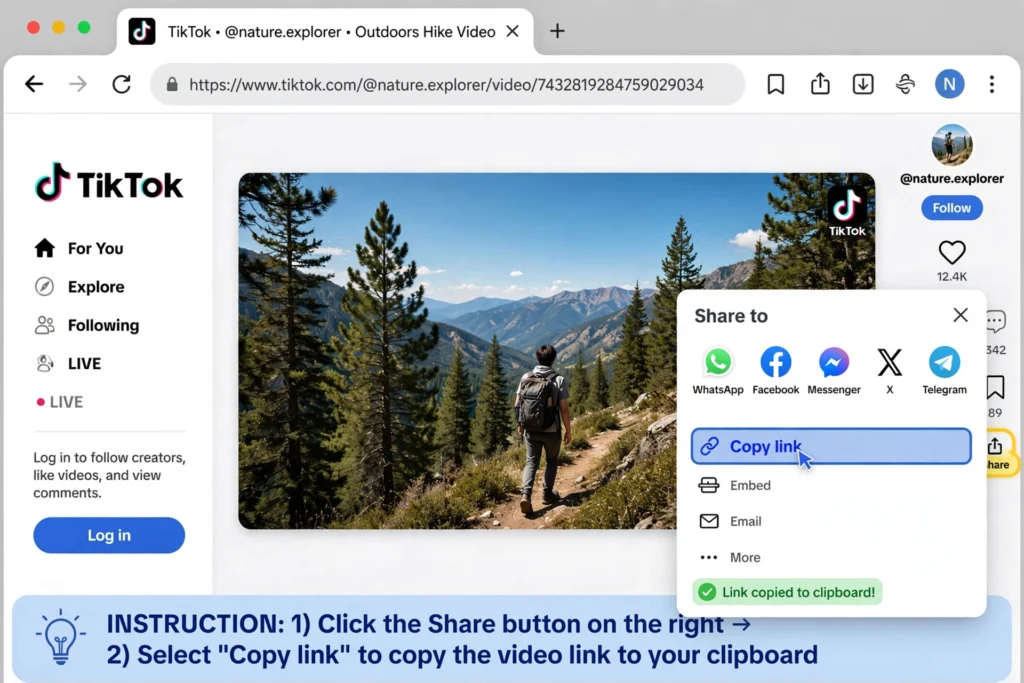
Step 2: Open the downloader
Go to ssstiksave.xyz in your browser.
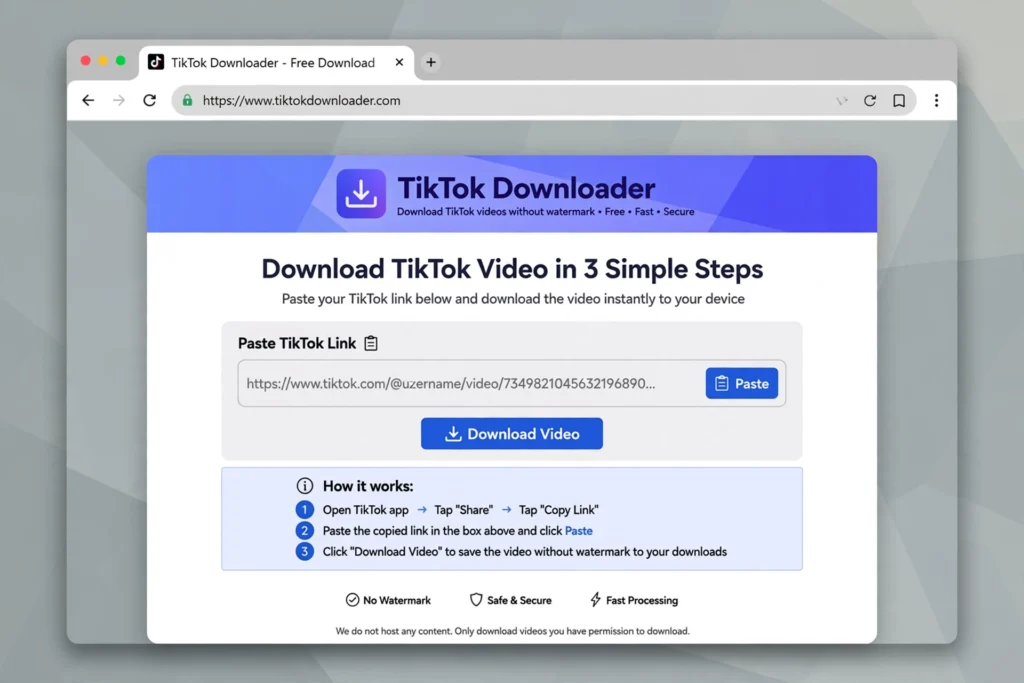
Step 3: Paste and download
Paste the link in the box, click Download. When options appear, click Download next to Without Watermark (MP4).
Your browser saves it to your Downloads folder (or asks where to save). Done.
If the video plays instead of downloading: right-click the download button → “Save link as…” → choose your folder.
Total time: under 30 seconds.
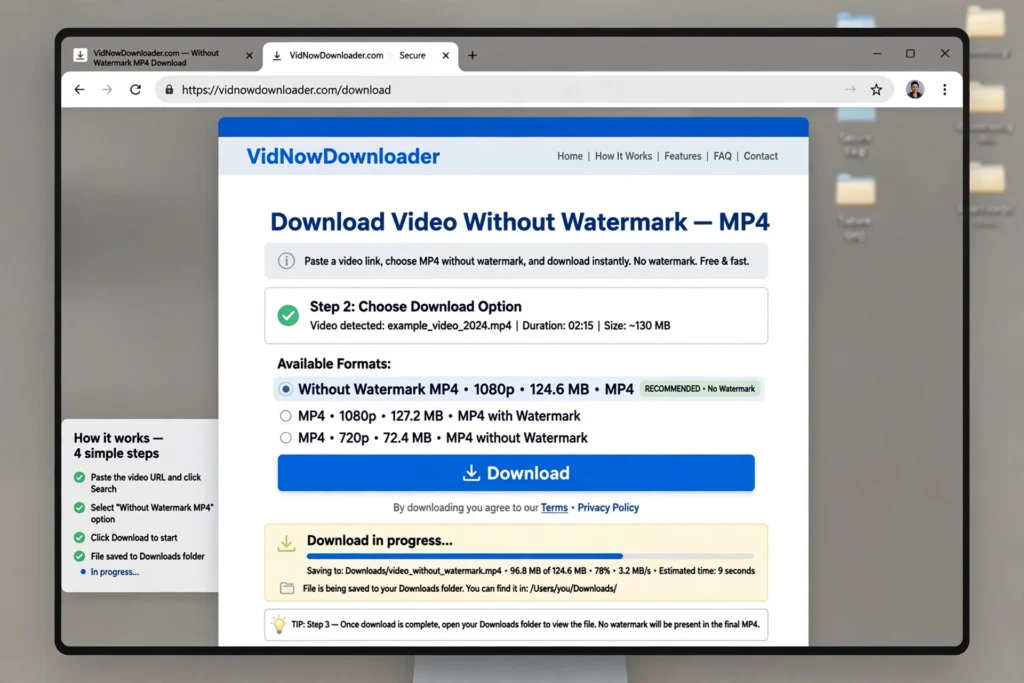
PC-Specific Tips
Bulk downloads. Downloading multiple videos? Open each in a new tab, paste links one by one. Some browsers let you queue downloads.
File organization. Create a dedicated folder (e.g., “TikTok Downloads”) — right-click → Save link as → navigate to your folder.
4K / HD quality. Always pick the HD MP4 option. Check the original video quality first — you can’t upscale what’s not there.
Mac Safari note. Safari on Mac may open the video in a preview. Right-click → “Download Linked File As” to force the save.
Troubleshooting
“Invalid link.” Re-copy from Share menu. Watch for tt.site format issues.
Private videos. Can’t be downloaded by any tool. No workaround.
No audio. Try MP3 option first to verify audio exists, then re-download MP4.
Slow downloads. Large HD files on slow connections time out. Try again or pick a lower quality option.
Batch Downloading for Creators
If you’re a creator saving your own catalog: download videos one by one (bulk tools often violate TikTok’s terms and get blocked). Save originals with descriptive filenames for easy editing later.
Is It Safe? Legal?
Personal use is fine. Legitimate tools need only the video link — never your TikTok login. Avoid tools asking for credentials or software installs.
FAQs
Do I need software?
No. Browser-only. Any “TikTok downloader software” is unnecessary.
Where do files save?
Your Downloads folder by default (or wherever you choose with “Save link as”).
Windows vs Mac — any difference?
No. The method is identical; only the right-click menu wording varies slightly.
Can I download TikTok LIVE recordings?
Only if someone uploaded the replay as a regular video with a shareable link.
Is ssstiksave free?
Yes — no account, no watermark, no limits.
Try it: paste any TikTok link at ssstiksave.xyz and grab the clean MP4 now.