How to Download TikTok Videos on iPhone Without Watermark (Safari Method)
You’ve found the perfect TikTok — a recipe, a funny clip, something you want to keep or repost — and you hit download. TikTok saves it, sure. But then you open it and there’s that watermark, bouncing around the screen with the username plastered over the video. If you want to repost it to Instagram Reels or send it on WhatsApp, it looks… borrowed. Stolen, even.
Here’s the thing: TikTok does that on purpose. And no, you don’t need to install some sketchy third-party app full of pop-ups to get around it. If you have an iPhone, Safari and a free online downloader are all you need. This guide walks you through the exact taps, including the part where most people get stuck (your video “downloads” but never shows up in Photos — we’ll fix that).
Why TikTok’s Own Download Always Has a Watermark
Quick detour, because it helps to know why this is happening. When you tap “Save video” inside the TikTok app, TikTok intentionally stamps the video with its logo and the creator’s username. That’s their anti-theft system — it makes sure the creator gets credited when the clip spreads to other platforms. TikTok has said publicly that downloaded videos carry this attribution so creators aren’t stripped of credit.
Fair enough for them, but not helpful when it’s your own video you want clean, or when the watermark covers the subtitles of a tutorial. That’s where a downloader comes in: it grabs the original video file from TikTok’s servers before the watermark gets stamped on.
One important note: don’t repost someone else’s video as your own. Downloading for personal use, saving your own content, or sharing with credit — fine. Stripping the watermark to re-upload without credit isn’t.
What You’ll Need
- An iPhone (any model running iOS 13 or later — Safari’s download manager arrived with iOS 13)
- The TikTok app (or just Safari — the video link works either way)
- About 60 seconds
No App Store downloads. No sign-ups. No “free trial” nonsense.
The Method: Download TikTok Videos Without Watermark via Safari
Step 1: Copy the video link from TikTok
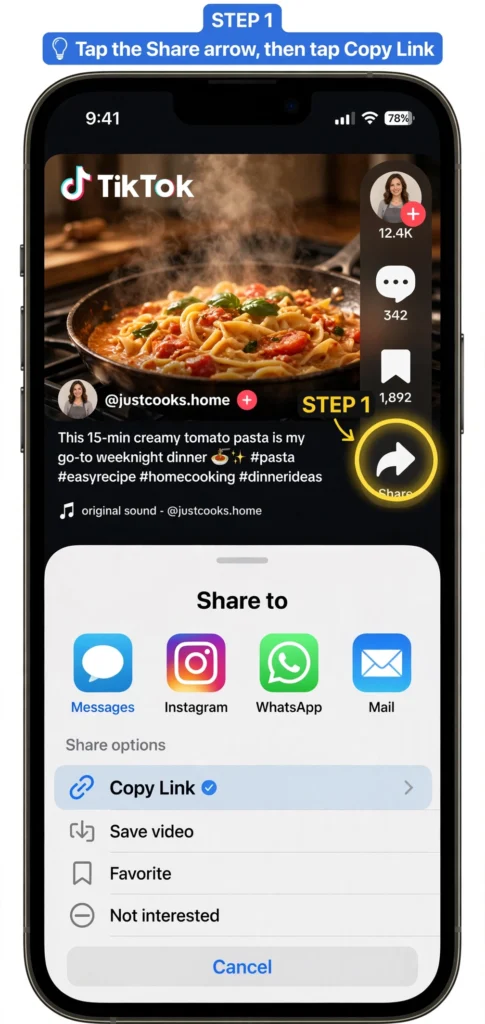
Open TikTok and find the video you want. Tap the Share arrow on the right side (the curved arrow icon). In the share menu, tap Copy Link. You’ll see a quick “Link copied” confirmation.
If the creator turned off downloads, the “Save video” option in this menu might be missing entirely — that’s fine, it doesn’t matter for this method. Copy Link is all we need.
2026 update: TikTok’s share sheet now generates short links that start with tt.site/t/… instead of the older vm.tiktok.com format. A lot of older downloader tools throw an “invalid URL” error on these new links. If a tool rejects your link, check whether it starts with tt.site — that’s usually why.
Step 2: Open the downloader in Safari
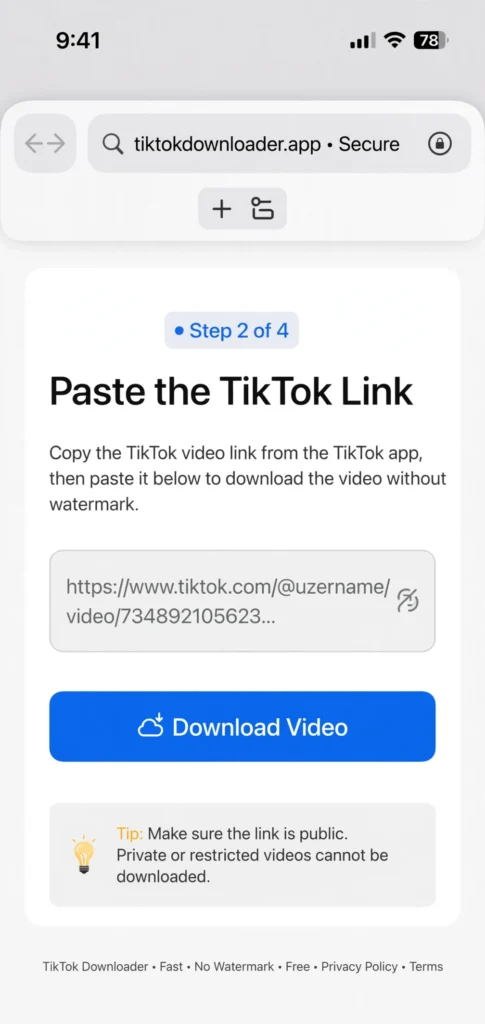
Open Safari and go to ssstiksave.xyz. You’ll see the download box right at the top of the page.
Step 3: Paste the link and hit download
Tap the input box, then tap Paste when the option pops up. Your TikTok link fills in. Tap the Download button.
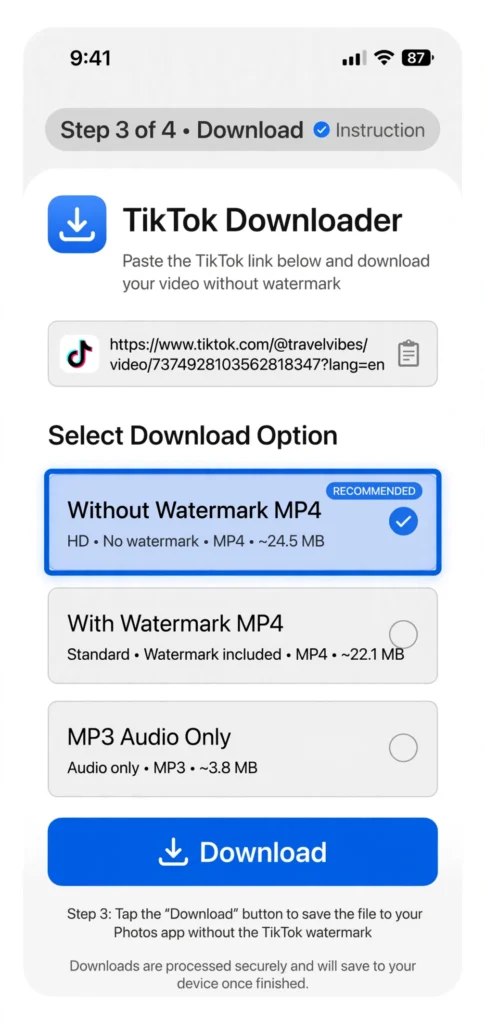
Give it a few seconds. The tool fetches the video from TikTok’s servers and presents you with download options — usually Without Watermark (MP4), With Watermark, and sometimes MP3 if you only want the audio.
Tap Download next to Without Watermark.
Step 4: Find the video in your Files app (this is where people get confused)
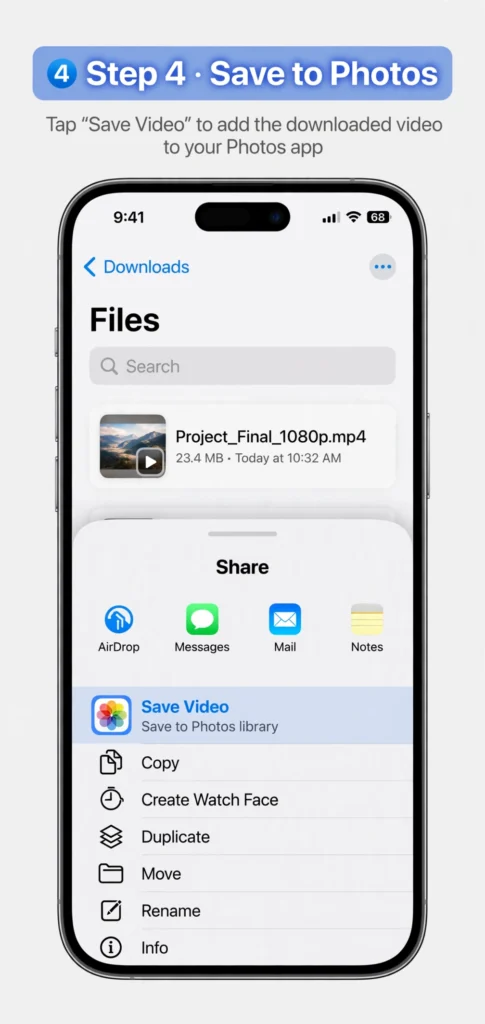
Here’s the catch with Safari on iPhone: it doesn’t drop videos straight into your Photos. Safari downloads files to the Files app first. So after you tap download, you’ll see a small download icon (a circle with a down arrow) appear in Safari’s address bar. Tap it, then tap the file name to open it — the video will play.
Now tap the Share button (the square with an arrow pointing up) at the bottom of the video player, and choose Save Video. Now it lands in your Photos / camera roll, clean, no watermark, full quality.
Step 5: Check your camera roll
Open the Photos app. Your video should be the most recent item. Play it — no bouncing logo, no username stamped across it. Done.
Total time: under a minute once you’ve done it twice.
iPhone-Specific Settings Worth Checking
Two small settings that trip people up:
- Where Safari saves downloads. Go to Settings → Apps → Safari → Downloads (on older iOS: Settings → Safari → Downloads). You’ll see either “iCloud Drive” or “On My iPhone.” Either works, but if you pick iCloud Drive and you’re low on iCloud storage, downloads can silently fail. “On My iPhone” is the safer pick.
- The video plays instead of downloading. Sometimes Safari opens the video in a player instead of downloading the file. When that happens, long-press the video (or the download link) and choose Download Linked File. Then follow Step 4 above to move it to Photos.
Troubleshooting: When It Doesn’t Work
“Invalid link” error. You probably copied the link wrong, or the video is private/deleted. Re-copy the link directly from the Share menu (not from your browser’s address bar if you opened it on desktop). Also — check whether it’s one of the new tt.site links and whether your downloader supports them.
The creator disabled downloads and the tool finds nothing. If the video is set to private, or the creator’s account is private, no downloader can fetch it — the video file simply isn’t accessible. There’s no workaround for this, and any tool claiming otherwise is lying to you.
The video downloads but has no sound. This happens with some tools that strip the audio track on certain videos. Try the MP3 option to check whether the audio exists, then re-download the MP4. If it persists, it’s the tool, not your phone — try a different downloader.
Download starts but never finishes. Usually a network hiccup. Switch from mobile data to Wi-Fi (or vice versa), re-paste the link, and try again. Large HD videos on weak connections time out — that’s normal.
It saved to Files but I can’t find it in Photos. You skipped the last tap: open the file in Files, hit Share, then Save Video. Safari will never put it in Photos by itself.
What About Downloading on Android or PC?
Same idea, slightly different plumbing. On Android, Chrome downloads the file directly and it shows up in your gallery without the Files-app detour. On a computer, right-click the download button and choose “Save link as” if your browser tries to play the video instead of saving it. The iPhone flow is the fiddly one — which is exactly why this guide exists.
Is This Safe? Is It Legal?
Downloading videos for personal use — saving your own drafts, keeping a recipe to watch offline, sending a funny clip to a friend — sits in the same gray-but-normal zone as screenshotting. The tools themselves don’t need your TikTok login, don’t install anything, and don’t touch your account.
What you should avoid: downloading tools that ask you to log in with your TikTok credentials or install a profile/configuration file on your iPhone. A legitimate downloader needs exactly one thing from you — the video link. Nothing else.
On the legal side: the video belongs to its creator. Keep downloads personal, credit creators when you share, and don’t re-upload other people’s content as your own. TikTok’s terms technically restrict downloading outside the app, but enforcement targets mass re-uploaders and bots, not someone saving a pasta recipe.
FAQs
Do I need to install an app to download TikTok videos on iPhone without watermark?
No. The Safari method in this guide needs no app, no signup, and no payment. Any “TikTok downloader” app in the App Store that promises this is just wrapping the same web tool in an app shell — usually with more ads.
Why does the watermark bounce around instead of staying in one corner?
Deliberate design. A static watermark can be cropped out; a moving one can’t. That’s exactly why downloading the clean original file is the only real way to get a watermark-free copy.
Can I download my own TikTok drafts without watermark?
Drafts live only on your phone and have no shareable link, so no downloader can reach them. Publish the video as private first, then copy its link and download it — then delete the private post if you want.
Does this work for TikTok Stories too?
Stories are trickier — they’re temporary and often restricted. Some downloaders support public story links; if yours doesn’t, screen recording (with the creator’s permission for anything beyond personal use) is the fallback.
The video I downloaded is low quality. Why?
You may have grabbed a preview version. Make sure you selected the HD / without-watermark MP4 option, not a thumbnail or preview. Also check your original: if the uploaded video was 480p, no downloader can invent pixels that aren’t there.
Is ssstiksave free?
Yes — paste a link, download the video. No account, no watermark on our end, no daily limits games.
Try it now: paste any TikTok link into the box at ssstiksave.xyz and grab the clean MP4 in under a minute. Your camera roll will thank you.